Mesh Import & Management
Drag in an FBX or OBJ, existing textures load, every material slot becomes paintable, nothing on disk changes.
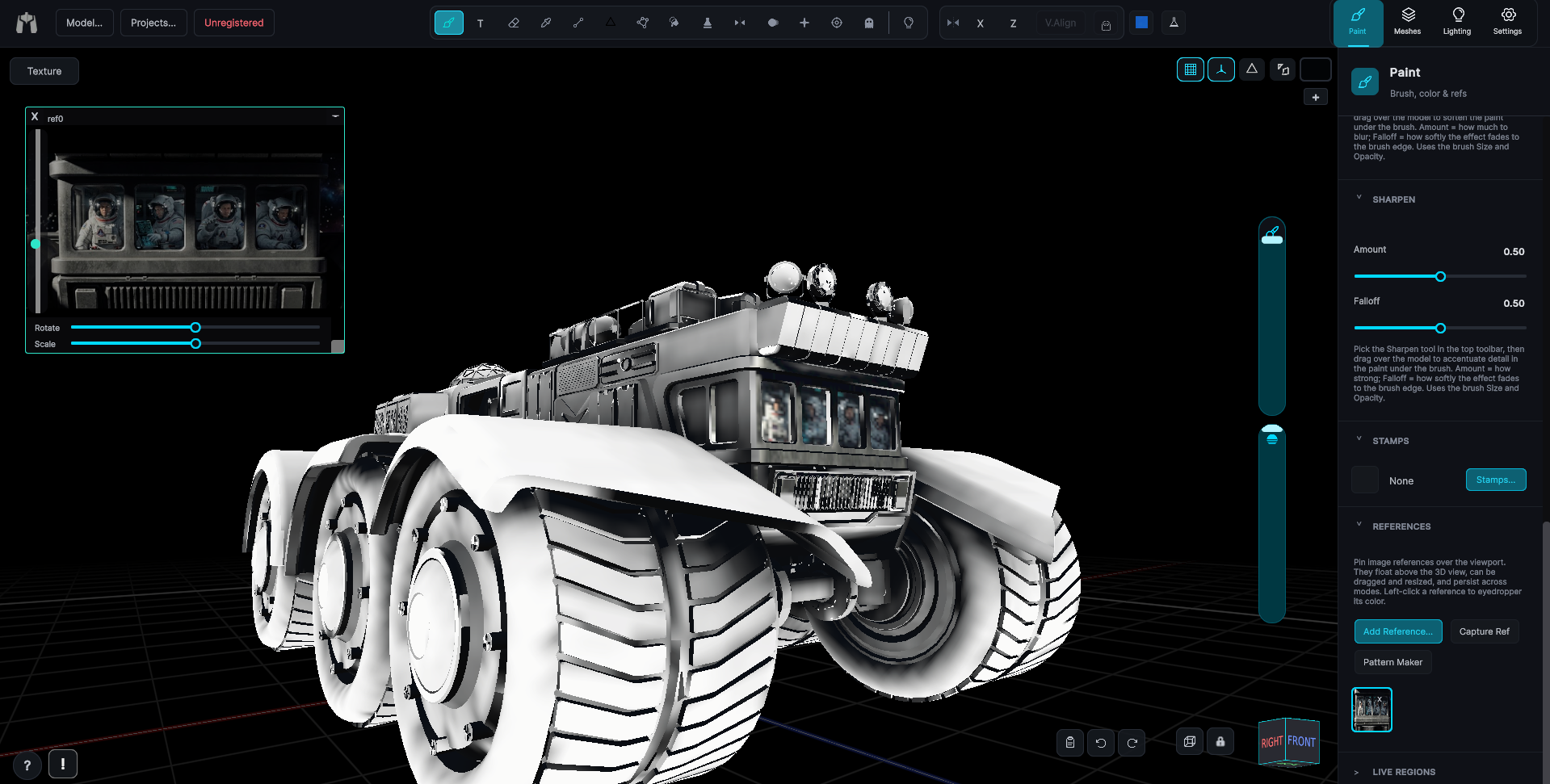
Drag a model onto the window or use the Mesh window's Import... button. Existing textures load onto the base layer, every material slot becomes an independently paintable submesh, and nothing on disk is modified.
The Mesh window (a draggable panel inside the viewport) holds the loaded model name, Import..., Open Folder, a uniform Scale slider, and Clear. The Meshes sidebar lists every submesh with per-row eye (hide/show) and Lock (paint-protect) toggles.
- Shift-click an eye to show only that submesh, and shift-click a padlock to unlock only it.
- Rest On Ground and uniform Scale help place the model.
- Common formats supported via drag & drop or the file dialog.
Auto-scale on import
Settings > AUTO-SCALE ON IMPORT is on by default. Every model that comes in is resized so it arrives at a workable size no matter what units it was saved in, which is what keeps the brush a sensible size on a model you have never opened before.
It fits the model's largest dimension rather than its height. That distinction matters on anything wider or longer than it is tall: fitting a quadruped by height leaves it several times too long, and because brush radius and decal tile size are measured in world units, the brush then arrives several times too small on a model the app believes is normal sized.
Turn it off if you are working to true scale and want models to land at the size they were authored at. Calibrate and true-scale export are unaffected either way.